
Employee & User Set Up
- In this article:
- Add Employee
- Security Options & Permissions
- Email Notifications
Add Employee
To set up employees in the system, select Employees from the left-hand side menu.

The Employees screen displays all employee records configured in the system. Employee records can be edited as needed. To add a new employee, click the New button in the top-right corner.
Employee Records and User Account Login Information
Maintenance Pro allows the creation of employee records without a system login. These employees can be assigned as technicians for Work Orders or assigned inventory items. When Allow Login is set to No, the employee will not have an email or password for Maintenance Pro access. Records configured in this manner do not consume a user license.
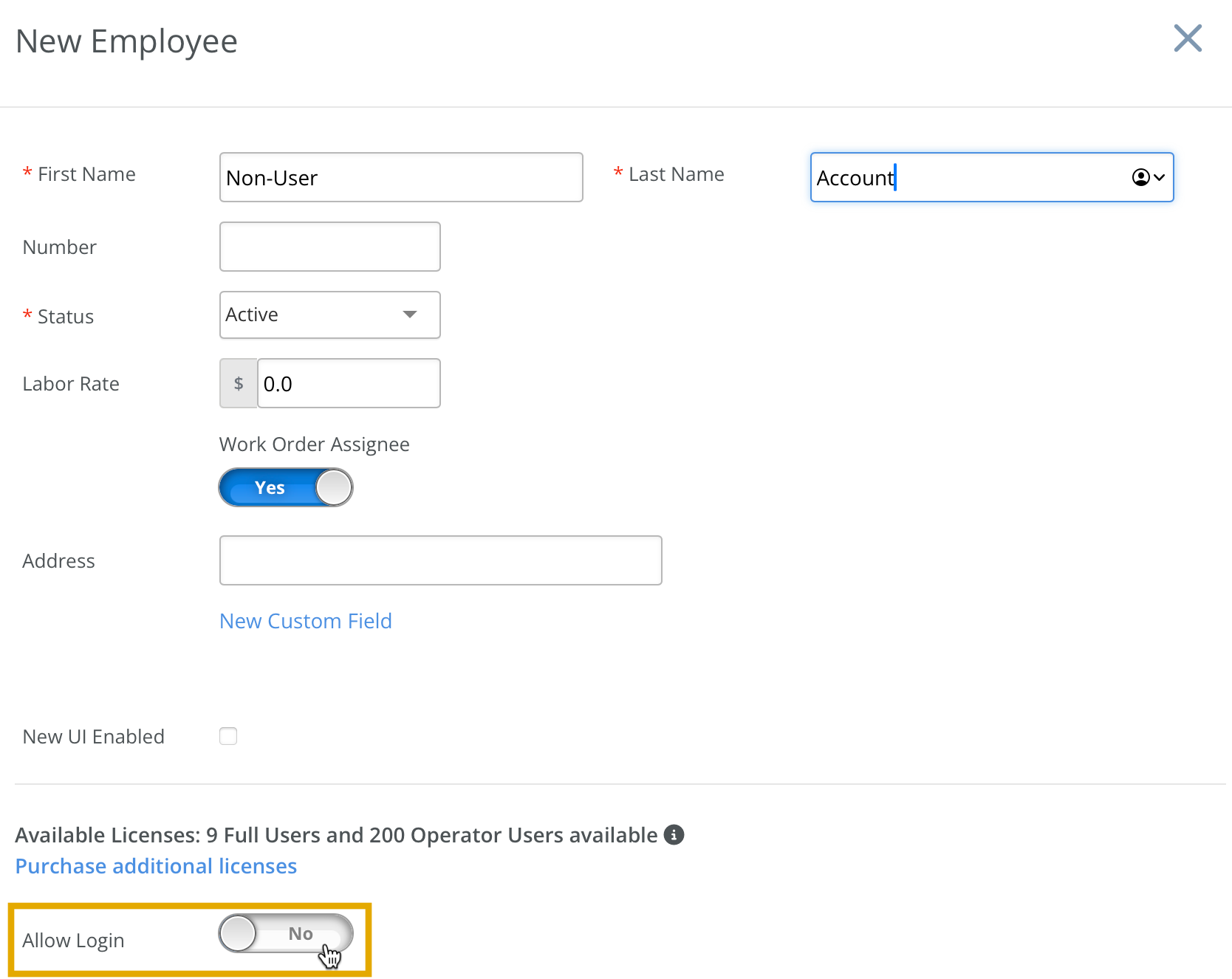
To provide an employee with a personal login, set Allow Login to Yes.
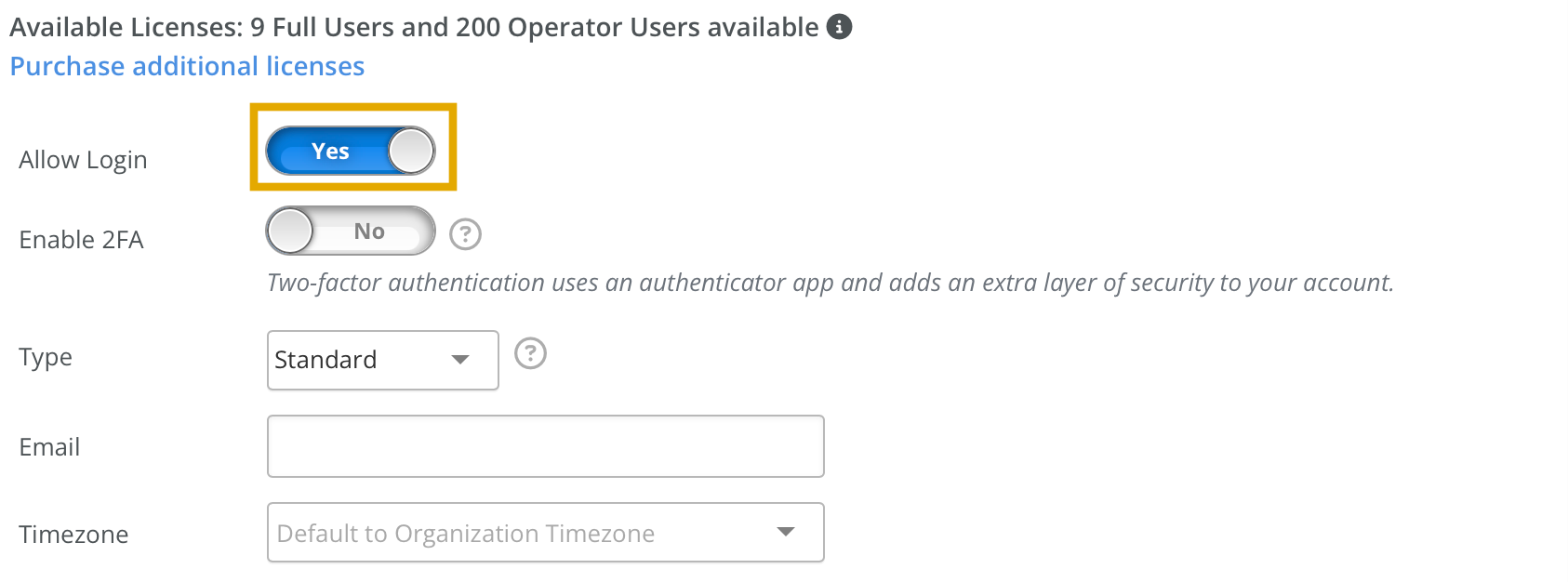
When Allow Login is enabled, the system requires an email address to link to the employee’s account. This email will be used for signing in at https://www.mtcproweb.com. After saving the employee record, an invitation email is sent to the provided address.
Type
- Admin – Full access to all program features with no restrictions.
- Standard – Limited access. A checklist specifies what the user can and cannot access.
- Operator – Designed for equipment drivers/operators with minimal access. Operator users can view the equipment list, update equipment odometers, complete inspection checklists, and record manual fuel transactions.
Invitation Email
In the invitation email, the employee should click the Join Organization button.
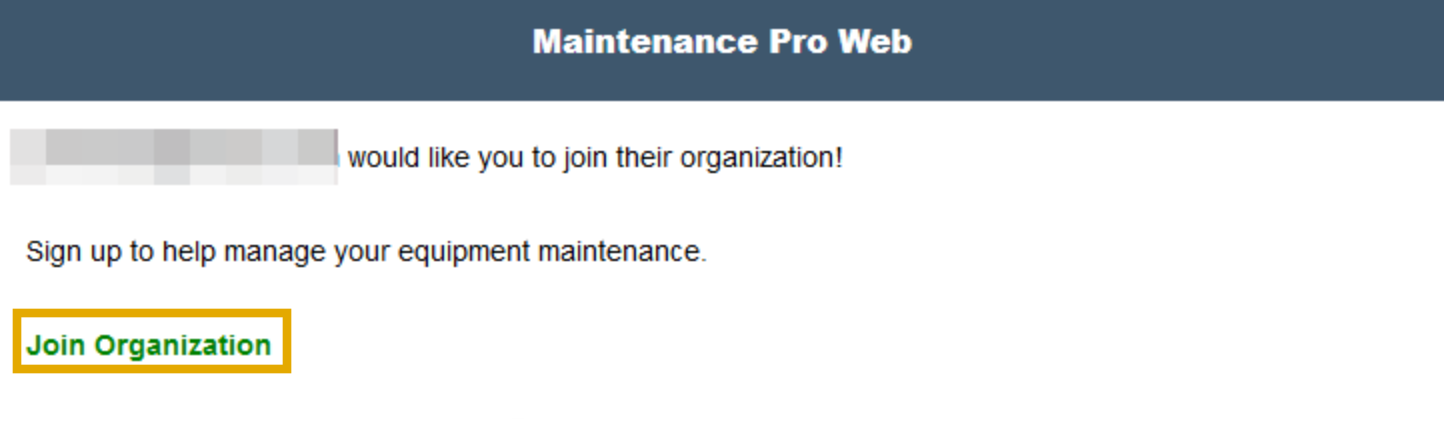
Clicking the link directs the employee to the Set Password screen.

No specific password requirements are enforced (such as uppercase, lowercase, numbers, symbols, or length). After entering a password, click Create Account.
Once completed, the user can log in using their email address and password at https://www.mtcproweb.com or through the Maintenance Pro mobile applications.
Haven't Received An Invitation Email
If the new employee has not received the invitation email, verify that the email address on their account is correct. The invitation will be sent from fmp_invitations@mtcpro.com.
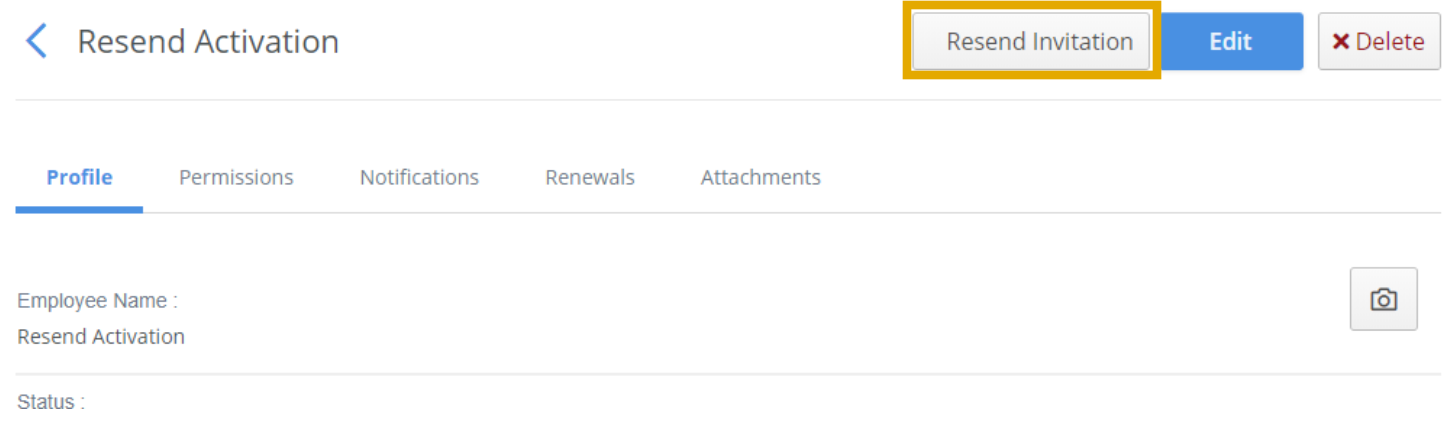
If the email is not found in the inbox, check the junk or spam folders. To resend the invitation, select the employee from the Employees list and click the Resend Invitation button in the top-right corner.
Security Options & Permissions
Every employee who is allowed to log in to Maintenance Pro can be assigned a specific account Type.

The account type can also be viewed from the Employee index.
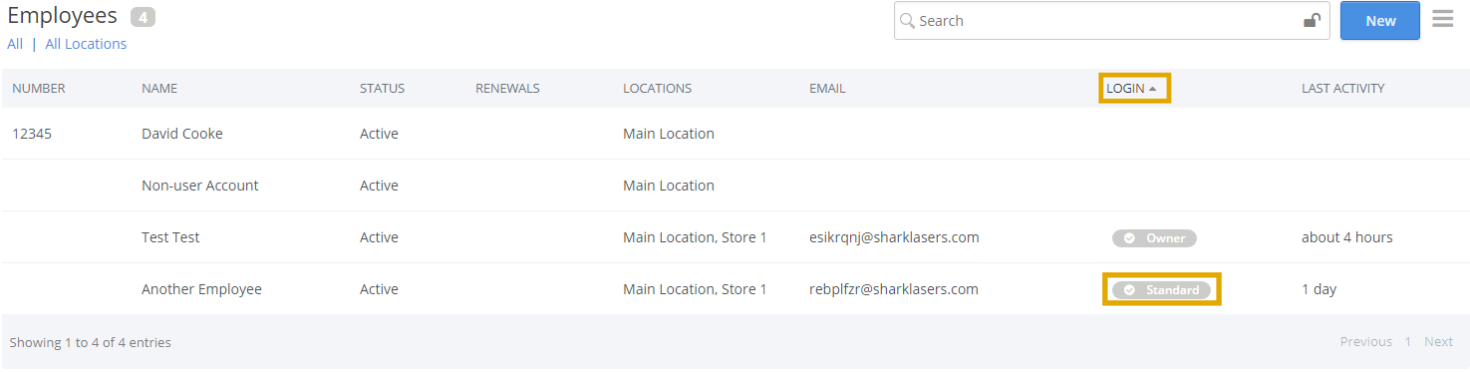
Here are the different types of accounts:
- Owner – The designated owner of the organization with full access to all features. This role is set in the Organization Profile and cannot be assigned through the standard Employee Edit window. Only one Owner can exist per organization.
- Admin – Similar to the Owner account, with full access to all areas of the software.
- Standard – Users with a Standard account can have restricted access to certain areas of the software. When this type is selected, a permissions menu appears where specific access rights can be configured.
- Operator – An Operator user can be set up with either an email/password login or a username/password login. Operators can only view the Equipment Index screen and can create repair requests, update meters, add expenses, and record fuel transactions. They do not have access to Inventory, Reporting, or Work Orders.
Setting Permissions / Restrictions
When setting an account to the Standard type, user permissions can be modified using the available checkboxes.

- A checked box indicates the user is allowed to perform that specific function.
- An unchecked box means the function is restricted.
- You can also limit the locations and warehouses the user is allowed to access.
- These options are located toward the bottom of the edit screen.
- Any items left unchecked will not be accessible to the user.

Email Notifications
Set Up Maintenance Pro User Email Notifications
- Watch the video tutorial for user setup: Watch Video
- Maintenance Pro can send email notifications to alert users of items that require attention.
- Click Employees from the left menu and select the user to edit.
- Scroll down to the Email Notification section.
- Enable the notifications needed by checking the appropriate boxes.
- Changes are applied automatically once selections are made.
